Gen3: Pairing and reconnecting
Last updated: October 24, 2026
Gen3 pairs over Bluetooth. Gen3, V2 and Lite pair the same way, over Bluetooth. Only the action that starts pairing mode is different (see below). V1 uses Wi-Fi pairing.
Product: Mysa for Electric Baseboard Heaters Gen3. Nameplate: MYSA BB V3-0.
Before you start
- Mysa app: The Mysa app on iOS 15.1 or later, or Android 8.0 or later.
- Primary homeowner: Only the primary homeowner can add a Mysa. Shared users cannot add a Mysa.
- Installed and powered on: Mysa must be installed and powered on. For installation, refer to Installation Overview.
- Bluetooth: Turn on Bluetooth on your phone. Your phone must have Bluetooth 4.0 or later.
- 2.4 GHz Wi-Fi: Mysa connects to 2.4 GHz Wi-Fi only. Mysa does not connect to 5 GHz Wi-Fi. Have your network name and password ready.
Pair Gen3 for the first time
- Open the Mysa app. Sign in, or create an account.
- On the home screen, tap + at the top right. Then tap Add a Mysa.
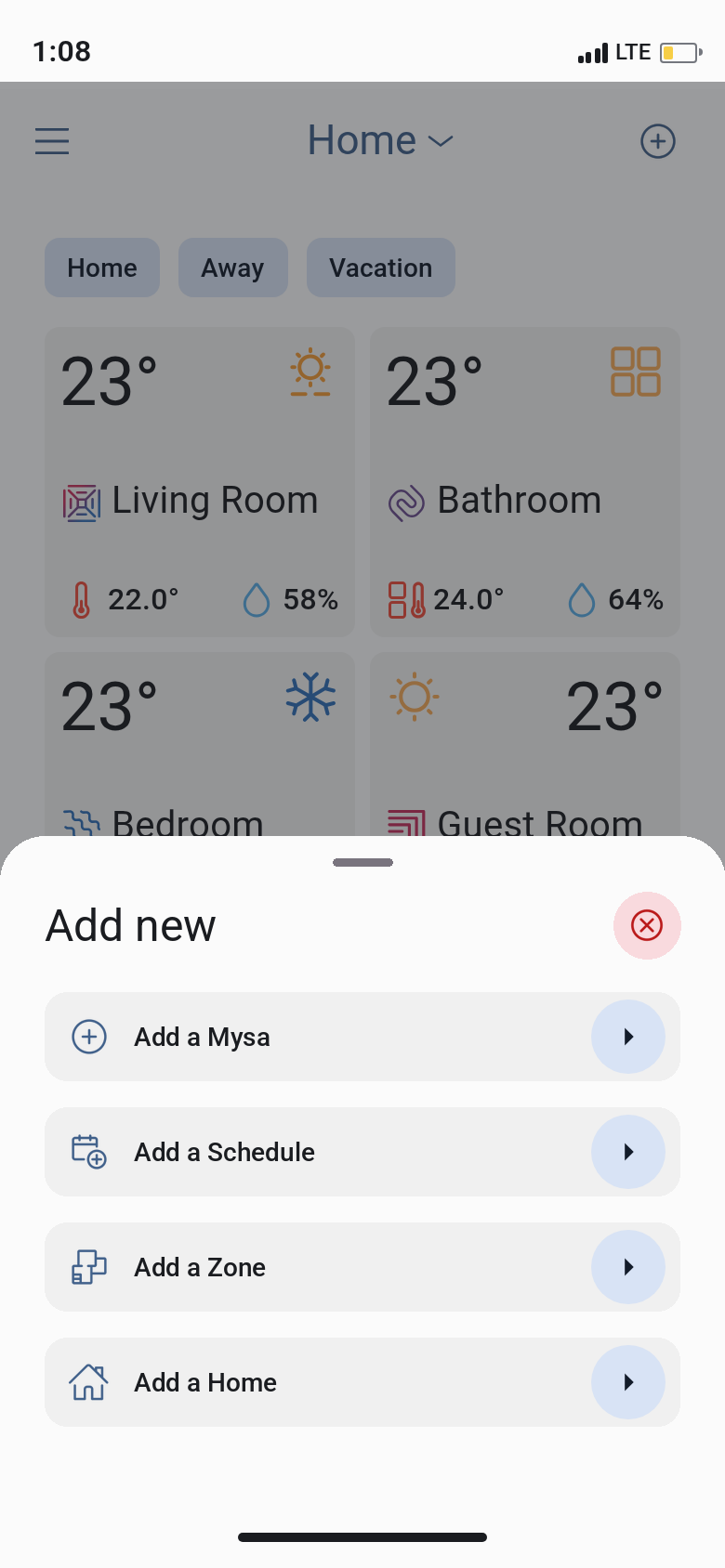
- Tap Yes, ready to set up. Then choose your home.
- Tap All other Mysa. Then tap Bluetooth Symbol.
- When the app asks for Bluetooth access, allow it.
- Stand in front of your Mysa and tap Next.
- Select your Mysa from the list. Tap Identify. Your Mysa smiles. Tap Yes.
- Name your Mysa. Then connect it to your 2.4 GHz Wi-Fi network.
- Select your heater type: Baseboard, Fan Forced or Radiant (radiant ceiling heaters). This is the last setup screen.
Firmware update
If an update is necessary, the app installs it.
- The update can take up to 5 minutes.
- Keep the Mysa app open.
- Keep the power on.
- Do not touch the thermostat until the update is complete.
When setup is complete, the app shows your Mysa as Online.
Smart home (Matter)
Gen3 connects to Apple Home, Google Home and Alexa through Matter only, after Mysa app setup.
- In the app menu, tap Home Assistants.
- Tap Mysa Baseboard V3. Then select your Mysa.
- Copy the Pairing Code.
- Add the code in Apple Home, Google Home or Alexa.
For more information, refer to Gen3: Connecting to your Smart Home using Matter.
Pair Gen3 again
Gen3 has capacitive touch controls (up and down).
- Hold the up arrow and the down arrow until the countdown on the screen ends. Gen3 resets its Wi-Fi and removes all its smart home (Matter) connections. Then set up Gen3 again in the Mysa app, and add it to your smart home app again. Do not do a soft reboot on Gen3.
- Pair your Mysa again in the Mysa app. Tap +, then tap Add a Mysa.
If you changed only your Wi-Fi, tap Reset Wi-Fi on the Troubleshooting screen in the app. Only the primary homeowner can do this.
On V1, V2 and Lite, a hold of the up arrow and the down arrow for 10 seconds is a soft reboot.
Zones
- You can put Gen3 in a zone with V1 or V2.
- Lite cannot be added to a zone.
If pairing fails
- Make sure that Bluetooth is on and that you stand in front of your Mysa.
- Make sure that you select your 2.4 GHz network, not a 5 GHz network.
- Do this step only as a last resort. Caution: You must set up Gen3 again after this step. Hold the up arrow and the down arrow until the countdown on the screen ends. Gen3 resets its Wi-Fi and removes all its smart home (Matter) connections. Then set up Gen3 again in the Mysa app, and add it to your smart home app again.
- If you still cannot pair, send an email to support@getmysa.com.