Pairing Your Mysa for In-Floor Heating
Last updated: November 23, 2026
Pairing Your Mysa for In-Floor Heating
Connect your Mysa for In-Floor Heating to the Mysa app over Wi-Fi. In-Floor pairs over Wi-Fi, not Bluetooth.
Before You Start
Requirements:
Mysa app installed (App Store | Google Play) — requires iOS 15.0 or later, or Android 8.0 (Oreo) or later
Mysa account created
Thermostat installed and powered on, with the floor sensor connected. The thermostat shows the Wi-Fi symbol.
The Mysa ID from the label on your thermostat
2.4 GHz Wi-Fi network (5 GHz not supported)
Your Wi-Fi network name and password ready
Tip Stand within a few feet of the thermostat during the entire pairing process.
Pairing Steps
Watch the steps in this video:
Open the Mysa app and sign in
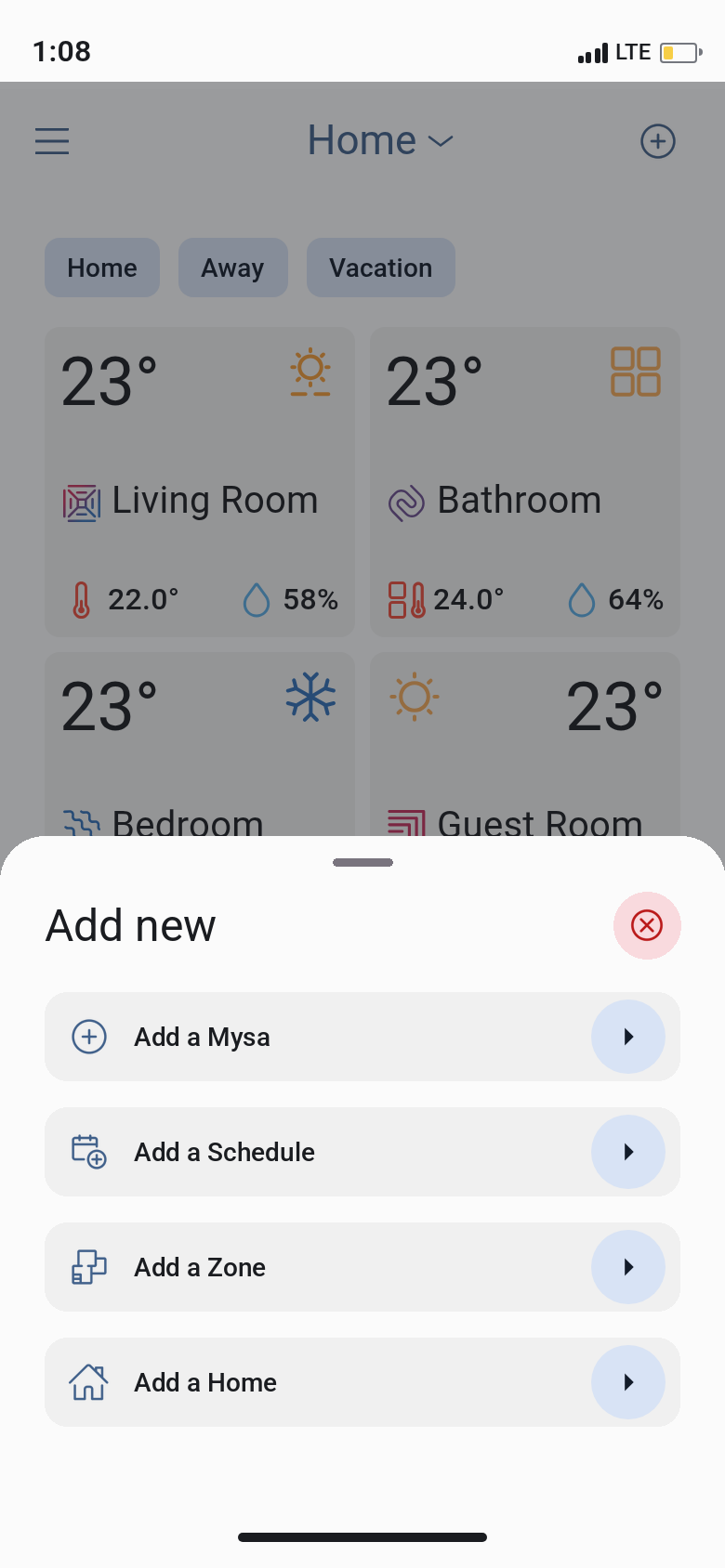
Tap the + icon in the top-right corner of the home screen, then tap Add a Mysa (or + Add Device on earlier app versions)
The app asks if your Mysa is installed and powered on. Tap Yes, ready to set up
The app asks which icon you see on your Mysa. Tap Wi-Fi Symbol
When your phone asks to find devices on your local network, tap Allow
If the app asks for your Mysa ID, enter only the part after "Mysa-" from the label, then tap Next
Select your 2.4 GHz Wi-Fi network, enter the password and tap Confirm
When your phone asks to join the Wi-Fi network of the Mysa, tap Join
Wait for the thermostat to connect and be added to your account. If an update starts, keep the app open until it's done
On Final Touches, choose your floor type and the floor sensor you're using, then tap Done
Your Mysa for In-Floor Heating is now paired and ready to use.
Note During pairing, the thermostat display shows a Wi-Fi symbol to indicate pairing mode is active.
Wi-Fi Requirements
Requirement | Specification | ||
|---|---|---|---|
Frequency | 2.4 GHz only (not 5 GHz) | ||
Standards | 802.11 b/g/n | ||
Security | None, WPA, or WPA2 (AES) |
Tip If you have a dual-band router, make sure you're connecting to the 2.4 GHz network, not the 5 GHz network. If your router broadcasts a combined 2.4/5 GHz network, the thermostat will connect to the 2.4 GHz band automatically.
During Setup: Floor Type and Sensor
On the last setup screen, Final Touches, you'll be asked to:
Choose your floor type. The floor type sets the maximum floor temperature.
Choose the floor sensor you're using. If it isn't the Mysa sensor, tap Other and select its resistance (default: 10K Ohm at 25°C).
The included floor sensor is a 10K Ohm sensor with a 15 ft (3 m) cable.
Note If you're using an existing floor sensor — not the included one — select the correct resistance value. Mysa supports third-party sensors in the 5K to 40K Ohm range.
Tip If the floor sensor is loose, disconnected, or has a resistance outside the supported range, you may see an I3 error code on the thermostat display. Check the sensor connection and try again.
Floor or Ambient mode isn't part of setup. After setup, open Mode on the thermostat's control screen to switch between Floor (heats to the floor temperature) and Ambient (heats to the room's air temperature).
Troubleshooting Pairing
Thermostat not found:
Make sure the thermostat shows the Wi-Fi symbol
Allow local network access for the Mysa app when your phone asks
Check that you entered the Mysa ID correctly (only the part after "Mysa-")
Keep Wi‑Fi enabled and connected to your 2.4 GHz network, then turn off mobile data and disable battery saver mode on your phone during pairing
Move closer to the thermostat
Power cycle the thermostat at the breaker
Try manually entering pairing mode (see below)
Wi‑Fi connection fails:
Verify you're using a 2.4 GHz network
Check your Wi‑Fi password
Move router closer or reduce interference
Thermostat already linked to another account:
If the thermostat was previously owned by someone else, it may still be linked to their account
Contact support at support@getmysa.com and provide a photo of the serial number for ownership transfer
To find the serial number on your Mysa for In‑Floor Heating: remove the faceplate by unscrewing the screw at the bottom and sliding the front cover off — the serial number is located inside
App crashes during pairing:
Update the Mysa app to the latest version
Restart your phone
Try again
Putting Your Mysa Into Pairing Mode
If your thermostat doesn't show the Wi-Fi symbol, you may need to manually enter pairing mode:
On the thermostat, press and hold the UP and DOWN arrows simultaneously for about 5 seconds.
The display will show the Wi-Fi symbol, confirming pairing mode is active.
Return to the app and retry the pairing process.
Tips for a Successful Pairing
Stay close — Keep your phone within a few feet of the thermostat during pairing.
Connect your phone to 2.4 GHz Wi‑Fi — Before starting the pairing process, ensure your phone is connected to the same 2.4 GHz Wi‑Fi network you’ll use for the thermostat.
Disable mobile data and battery saver — Turn off mobile data and disable battery saver mode on your phone during the pairing process to prevent connectivity issues.
Use 2.4 GHz Wi‑Fi — Mysa devices connect to 2.4 GHz networks only. If your router broadcasts a combined 2.4/5 GHz network, the thermostat will connect to the 2.4 GHz band automatically.
Check your Wi‑Fi password — A mistyped password is the most common reason pairing fails.
Restart if needed — If pairing fails, power‑cycle the thermostat by turning off the breaker for 10 seconds, then try again.
Network Diagnostics Tool
If you're experiencing connectivity issues during or after pairing, Mysa offers a built-in Network Diagnostics tool directly in the app. This tool can help identify Wi-Fi signal strength problems, network configuration issues, and other connectivity concerns.
To launch the Network Diagnostics tool:
Open the Mysa app.
Tap the Support button in the top-right corner of the screen.
Select the Network Diagnostics option.
Follow the on-screen prompts to run a diagnostic check.
The tool will analyze your network environment and provide recommendations to improve your connection. This is especially helpful if your thermostat is having trouble staying connected or if pairing repeatedly fails.
Need Help?
Contact our support team at support@getmysa.com for assistance with pairing your Mysa for In-Floor Heating.